
To move an EAGLE design to KiCad or Altium, open it with the importer that ships with the new tool, then rebuild what the importer doesn't carry over: design rules, net classes, polygon settings, library links and BOM fields. Before you order boards, prove the migrated design matches the last one you built by comparing netlists and overlaying the old and new Gerbers. Autodesk stopped selling and supporting EAGLE on June 7, 2026, so any board you still need to revise has to move to a supported tool.
Updated October 24, 2026. Reviewed by the IPC CID+ certified lead designer, Circuit Board Design
Why EAGLE boards have to move now
Autodesk announced in 2023 that it would stop selling and supporting EAGLE on June 7, 2026. The notice, quoted on the KiCad forum and discussed on the Autodesk EAGLE forum, pointed users to the electronics workspace in Fusion. That date has passed.
Your old files are still yours and they're still readable. Gerbers you already sent to a fab are still valid, and a board that's in production today doesn't stop working. The problem shows up at the next revision. A part goes end of life, a connector moves, a customer asks for a change, and the only copy of the design is in a tool nobody supports. That's the moment to have the design already moved and checked, not the week the change is due.
There are three common paths: Fusion (Autodesk's own route), KiCad or Altium Designer. This guide covers KiCad and Altium, the two tools we design in every day.
KiCad or Altium: which one should you migrate to?
Both tools import EAGLE files natively. The choice is about who else has to open your files, how complex your boards are and how you want to pay for the tool.
| Question | KiCad | Altium Designer |
|---|---|---|
| Licence | Free and open source | Paid subscription |
| EAGLE import | Built in. EAGLE 6.x or newer XML files | Built in Import Wizard. EAGLE 6.4 to 9.4 XML files |
| Who can open your files | Anyone, at no cost | Teams and contractors with a licence |
| Good fit | Startups, small teams, open hardware, boards built at JLCPCB or PCBWay | Dense multilayer, high speed and teams whose CM or customer works in Altium |
| Library after import | Symbols and footprints in separate files | SchLib and PcbLib, compiled to an IntLib |
If you're unsure, ask where the files go next. If a contract manufacturer, a customer or a future hire needs to edit them, use the tool they use. We compared the two tools in more depth in Altium vs KiCad in 2026. We deliver native files in either format, so the choice doesn't have to be final.

The EAGLE migration flow in five stages
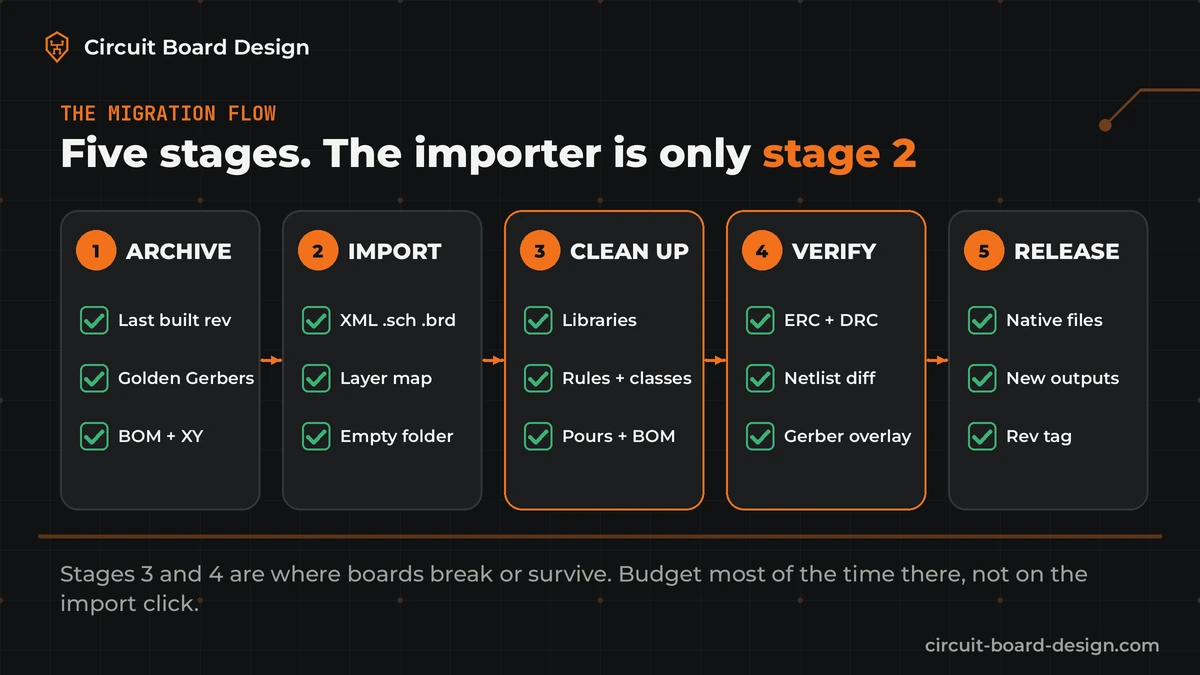
Stage 1: archive the last built revision
Before you touch anything, freeze a golden reference. We'd call this the most skipped step. Save the EAGLE .sch, .brd and .lbr files, the .dru rules file and CAM job, plus the exact Gerbers, drill files, BOM and pick-and-place file that went to the fab for the last board you built and tested. Every later check compares against this set. If you've only got EAGLE files and no Gerbers from the built board, note that. You'll be comparing against a design, not against hardware that's known to work.
Stage 2: import
Both importers read EAGLE's XML format. Files saved by versions older than EAGLE 6 are binary and have to be saved again as XML first. Altium's import guide states that binary design files can't be imported directly.
- KiCad: File, then Import Non-KiCad Project, then the EAGLE option. Pick the schematic or the board. Both files need the same base name (project.sch and project.brd), as the KiCad documentation notes. Import into a new, empty folder.
- Altium Designer: File, then Import Wizard, then EAGLE. Add the .sch, .brd and .lbr files and review the layer mapping before you finish. The wizard writes a log with errors and warnings. Read it.
In both tools, look at the layer mapping screen carefully. A board outline on the wrong layer or a missing milling layer is easy to fix now and expensive to find at the fab.
Stage 3: clean up
This is where the real work is, and it's where we spend most of our time on a migration. You rebuild design intent the importer doesn't understand: net classes and clearances, pour priorities and thermal settings, library links and the fields your BOM needs. The eight problems below are the ones we see most.
Stage 4: verify
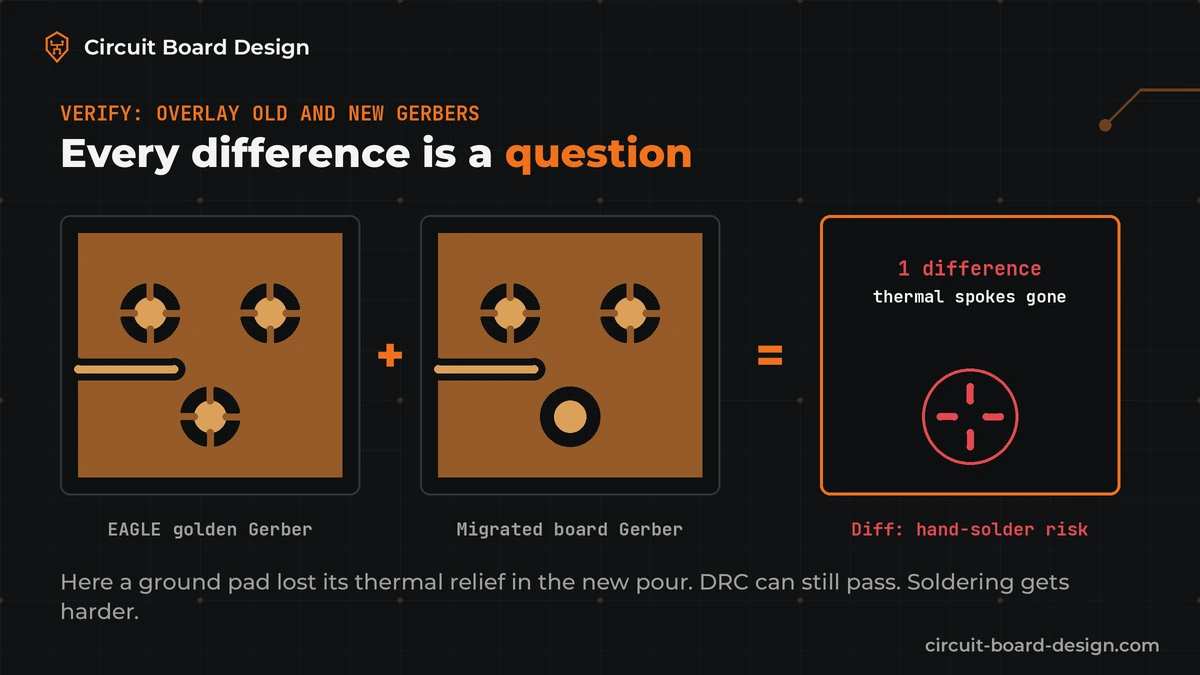
Run ERC and DRC, then go further. Export a netlist from the old and new designs and compare them. Then overlay the old Gerbers on the new ones in a Gerber viewer, layer by layer. Every difference is either a deliberate change or a bug.
Stage 5: release
Set up new fabrication outputs in the new tool, generate a full package, check it in a viewer, and tag the new revision so nobody edits the EAGLE copy again.
What the importer transfers and what breaks
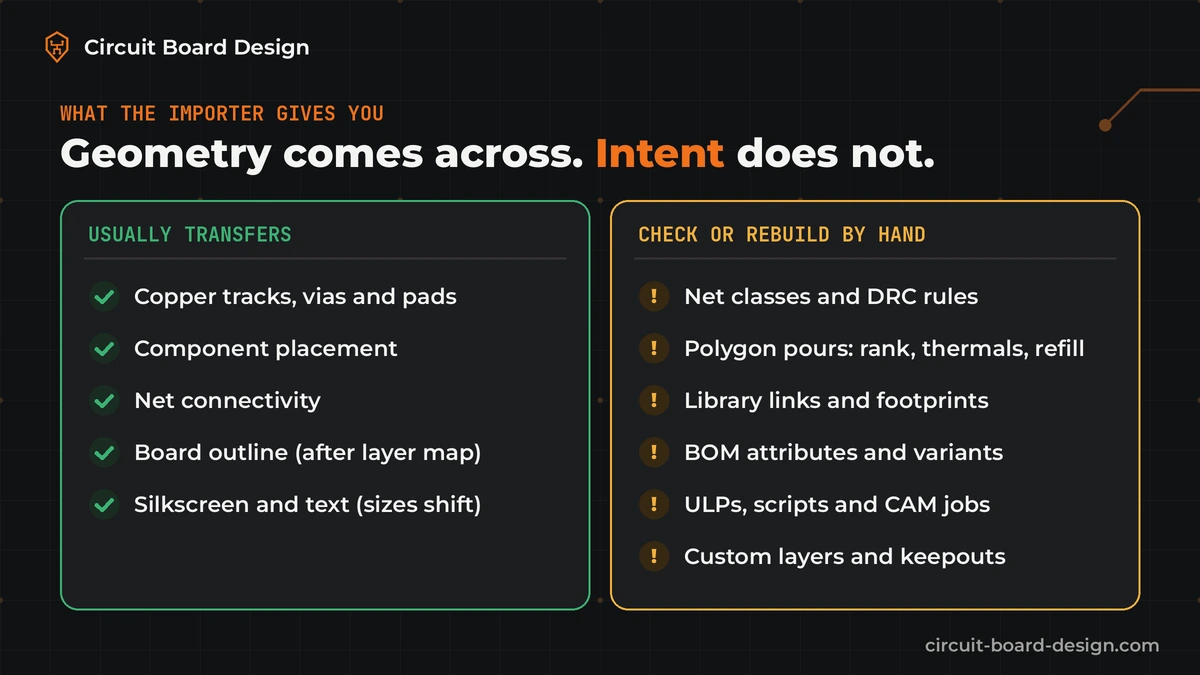
8 things EAGLE converters get wrong
1. Net classes and design rules
EAGLE keeps clearances and widths in net classes and in the board's design rules (the same rules you can save as a .dru file). Importers bring some of this across and drop the rest. Altium's own guide tells you to review rules in the Rules and Constraints Editor after import and to fix rules that miss their targets. Rebuild power, high-current and controlled impedance classes on purpose. Then set clearances from your fab's real capabilities, not from whatever the import produced.
2. Polygon pours
EAGLE polygons carry a rank, an isolate value, a thermals setting and an orphans setting. KiCad zones use a priority number that counts the other way (in EAGLE, rank 1 wins. In KiCad, the higher priority wins). After import, refill every zone (B in KiCad, repour in Altium) and check overlaps, thermal reliefs and islands. Altium's guide also suggests merging imported polygons into larger pours with matching rules. A pad that lost its thermal relief still passes many DRC setups. It just gets hard to solder.
3. Library and footprint mapping
An EAGLE .lbr holds the symbol, the package and the device with its variants and technologies in one file. KiCad splits that into symbol libraries and footprint libraries. Altium creates a SchLib and PcbLib. Pin-to-pad maps, package variants and technologies are where errors hide. Treat every converted footprint as unverified until it has been checked against the datasheet: pad size, pitch, pin 1 and the courtyard. Footprint errors are a classic cause of respins, and the converter can't know your part was mirrored or mis-pinned in the old library.
4. Layers, outline and keepouts
EAGLE uses fixed layer numbers. Dimension (20) is the outline, Milling (46) holds slots and cutouts, and tRestrict, bRestrict and vRestrict (41 to 43) are keepouts for copper and vias. Custom layers above 100 often carry assembly notes or mechanical data. Map each one on purpose. In KiCad the outline goes to Edge.Cuts and restrict areas become rule areas. Altium's guide also recommends adding a keepout boundary to the board after import.
5. Power nets connected by name
EAGLE supply symbols and hidden power pins connect by net name. After import, check that every GND, VCC and rail is still one net and that no two rails were merged. Altium's guide warns that power ports named like P+ can come across as ordinary ports and cause shorts unless you change the port designator setting. A netlist comparison catches this in minutes. Missing it can cost you a board.
6. DRC differences
Each tool measures clearance a little differently. The first DRC run after import often shows hundreds of violations. Most are noise from rule translation. A few are real. Don't waive them in bulk. Fix the rules first, run again, and then look at each remaining error.
7. BOM attributes and assembly variants
MPN, manufacturer, supplier fields, values and do-not-populate flags live in EAGLE attributes and assembly variants. Check that they arrived as KiCad fields or Altium parameters with the names your BOM template expects. Then compare the new BOM line by line with the BOM from the last build. Check the pick-and-place file too: origins and rotations often shift when footprints are rebuilt.
8. ULPs, scripts and CAM jobs
User Language Programs and EAGLE CAM jobs don't migrate. If you relied on a ULP for BOM export, panel notes or a custom drill table, rebuild that step with the new tool's outputs (plot and fabrication outputs in KiCad, an OutJob in Altium) and check the result against the old files.
EAGLE migration checklist
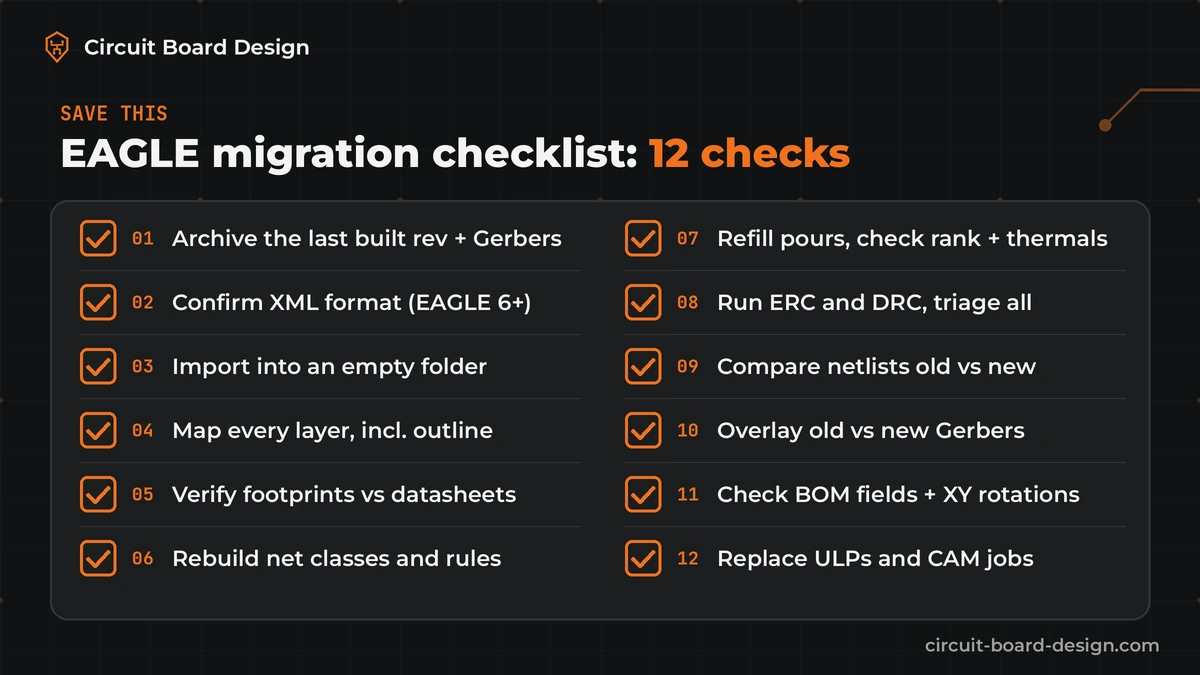
- Archive the EAGLE files plus the Gerbers, drill, BOM and XY from the last built revision.
- Confirm the files are XML (EAGLE 6 or newer). Save older binary files as XML first.
- Import into a new, empty folder or project.
- Map every layer, including outline, milling and restrict layers.
- Verify each footprint against its datasheet: pads, pitch, pin 1 and courtyard.
- Rebuild net classes and design rules from your fab's capabilities.
- Refill all pours. Check priority, thermals and islands.
- Run ERC and DRC. Fix the rules, then triage each remaining error.
- Compare old and new netlists.
- Overlay old and new Gerbers and drill files, layer by layer.
- Compare the BOM line by line and check XY origins and rotations.
- Replace ULPs and CAM jobs with new outputs, then tag the new revision.
Migrate it yourself or hire it out?
A simple two-layer board with stock parts and a clean library is often fine to move yourself with the checklist above. It gets harder when the board is still in production, has four or more layers, uses controlled impedance or tight pours, or sits on a large custom library. It also gets harder when you have a dozen boards to move and nobody has the time to verify each one.
If you hire it out, ask what you'll get back. A good migration delivers more than converted files:
- Native KiCad or Altium project files that open without errors
- A cleaned library with every footprint checked against its datasheet
- Rebuilt net classes and design rules for your fab
- A netlist comparison and a Gerber overlay against your last built revision
- A BOM and pick-and-place file that match the old build, field by field
That's how we run migrations at Circuit Board Design. Our lead designer is IPC CID+ certified, we've delivered 500+ PCB designs since 2016, and we work in KiCad and Altium Designer. If you already converted a board yourself, our pre-fab design review checks it before you order.
Frequently asked questions
Can I still open my EAGLE files after June 7, 2026?
Yes. EAGLE 6 and newer save designs as XML, and both KiCad and Altium Designer import those .sch, .brd and .lbr files with built-in tools. Autodesk's own route is Fusion. What ended on June 7, 2026 was Autodesk selling and supporting EAGLE, so plan the move before the next revision is due.
Is Eagle to KiCad migration better than Eagle to Altium?
Neither is better for every team. KiCad is free and anyone can open the files, which suits startups and boards built at JLCPCB or PCBWay. Altium suits dense multilayer and high-speed work and teams whose manufacturer or customer already uses it. Pick the tool the next person who edits the files will use.
Does KiCad import EAGLE libraries?
Yes. KiCad can read an EAGLE .lbr and convert it, and it splits each part into a symbol and a footprint in separate libraries. Treat every converted footprint as unverified until you check pad size, pitch, pin 1 and courtyard against the datasheet.
Will my Gerbers change after migrating from EAGLE?
They shouldn't change unless you changed the design. Pours, thermal reliefs, text sizes and drill tables can shift during import, so overlay the old and new Gerbers layer by layer and explain every difference before you send files to a fab.
How long does an EAGLE migration take?
The import takes minutes. The cleanup and verification take longer and depend on layer count, part count, the size of the custom library, the number of pours and rules, and whether you have Gerbers from a built board to compare against. Verification is the part not to cut.
What should I send to get an EAGLE migration quote?
Send the .sch, .brd and .lbr files, the .dru rules and CAM job if you have them, the Gerbers and BOM from the last built revision, the target tool (KiCad or Altium) and the fab you plan to use. That's enough for a fixed quote per board.
Get your EAGLE boards moved without a respin
Send us your EAGLE files and the Gerbers from the last board you built. We migrate the design to native KiCad or Altium files, rebuild the library and rules, and hand back the netlist comparison and Gerber overlay so you can see nothing moved. Every migration gets a fixed quote per board. Already converted it yourself? Ask for the free quick check and get checklist-level notes in 2 business days.
Get a fixed quote for your EAGLE migration


